How to Create Professional Inspection Reports on Mobile in Minutes
The traditional report workflow is broken: inspect, drive to office, copy photos into Word for 3 hours, email next day. Mobile inspection apps eliminate most of this.
The Old Way vs. The New Way
Old workflow (3-4 hours)
Take photos with phone camera
Scribble notes on clipboard
Drive back to office
Transfer photos to computer
Open Word template
Insert photos, resize, caption
Type notes from memory
Format, export PDF, email
Modern workflow (5-10 min)
Take photos in inspection app
Add notes and annotations live
Pin photos to floor plan
Tap "Generate Report"
Share PDF from phone
Choosing the Right Report Type
Not every inspection needs the same report format. Most apps offer several types — picking the right one saves time and gives stakeholders exactly the information they need:
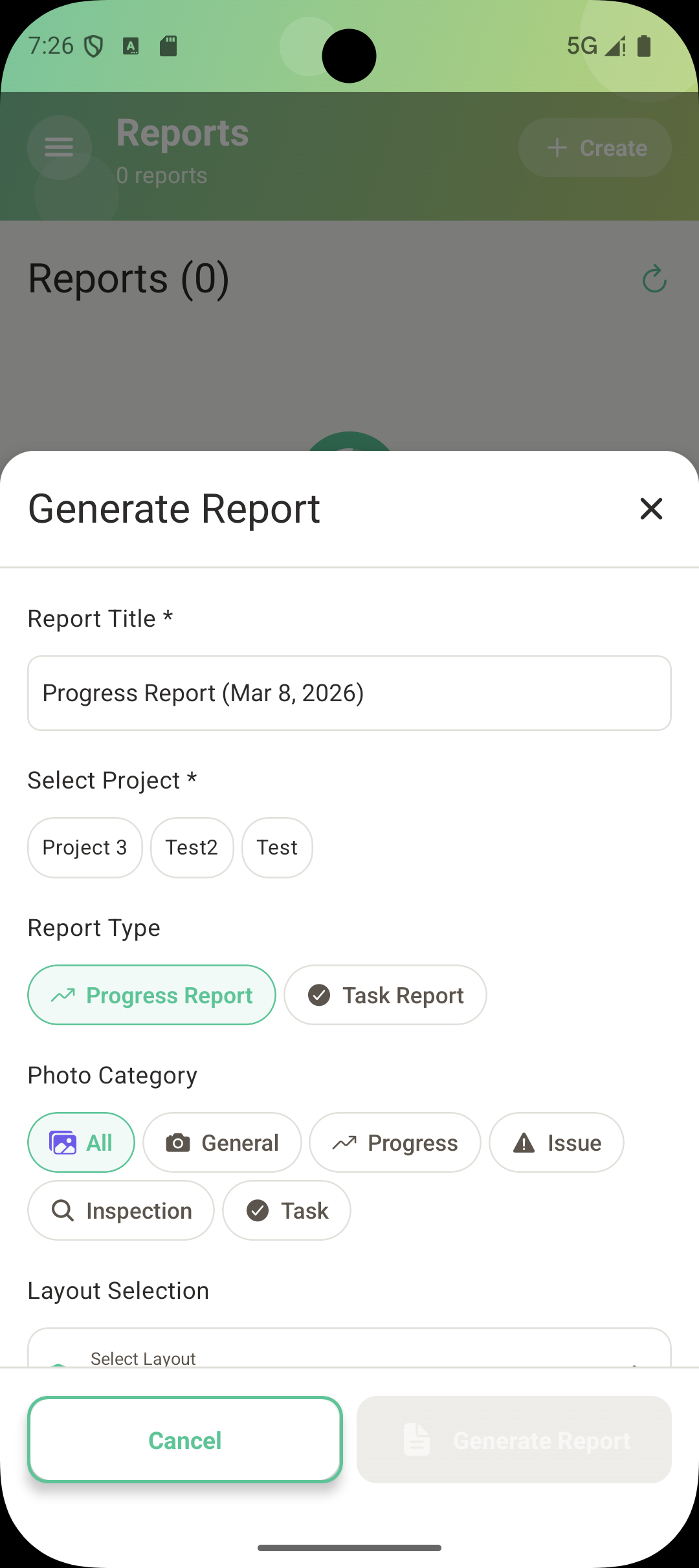
Progress Report — Chronological overview of work completed. Best for weekly client updates, billing milestones, and project status meetings.
Inspection Report — Findings organized by location with floor plan views. Best for formal quality and compliance inspections.
Issue Report — Only problems and defects, filtered by severity. Best for punch lists and subcontractor coordination.
Task Report — Outstanding and completed tasks with before/after photos. Best for tracking rework items and verifying corrections.
Choose report type, project, and filters before generating
What Makes a Report Professional
It is not about fancy design. Clients and stakeholders care about clarity and completeness:
Project header — Project name, location, inspection date, inspector name. This identifies the report at a glance.
Summary section — Total photos, issues found, areas inspected. Decision-makers read this first and often skip the rest.
Photos with context — Each photo has a caption, location reference, and timestamp. A photo without context is just a picture.
Floor plan overview — A plan view showing where each pin is located. This gives spatial context that no amount of text can replace.
Company branding — Your logo and company info on the cover page. Small detail, but it builds trust and professionalism.
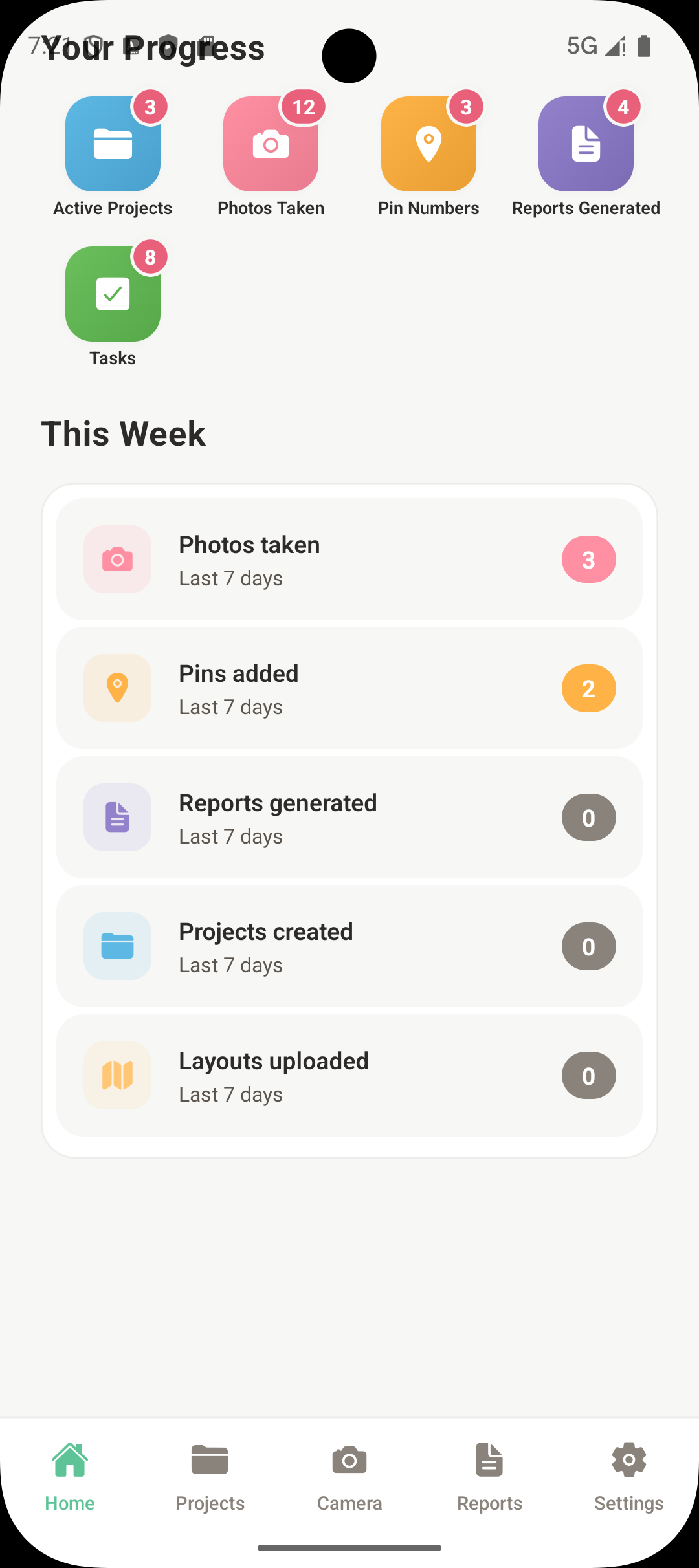
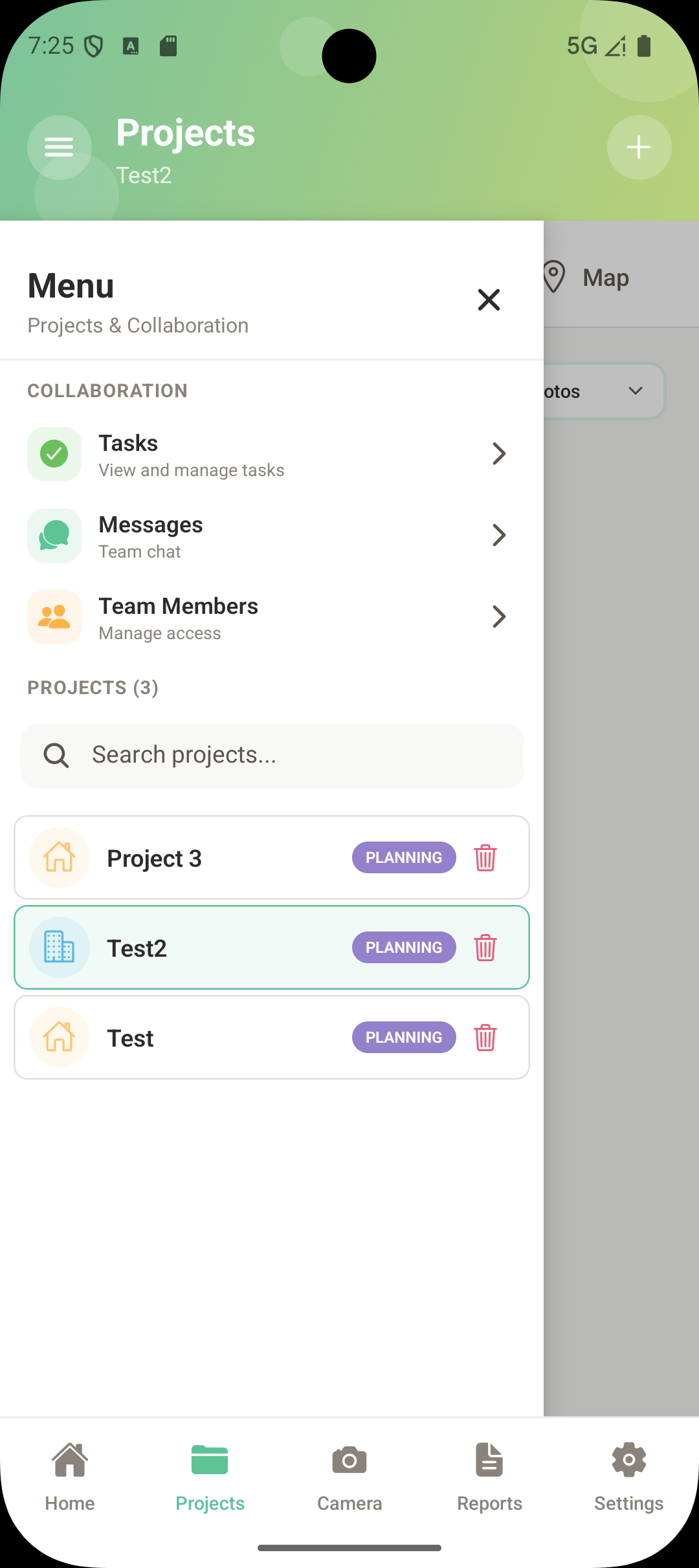
Track inspection progress at a glanceShare reports with your team
Filtering for Focused Reports
A full project might have 500 photos. Your client does not need all of them. Use filters to create targeted reports:
Date range — Only photos from this week or this visit
Category — Only issues, only progress, or only inspections
Layout — Only photos pinned to a specific floor plan
A focused 15-photo report is more useful than a 200-photo dump. The reader should be able to understand the situation in under five minutes.
Delivery and Timing
Same-day delivery changes the dynamic. When clients receive an inspection report the same afternoon, issues get addressed immediately. When reports arrive three days later, momentum is lost and problems compound.
Generate and share the report before leaving the site whenever possible
Share via email, WhatsApp, or any app on your phone — no need to reach a computer
Archive every report in the cloud for future reference, warranty claims, or legal needs
For recurring inspections, maintain a consistent format so stakeholders know what to expect